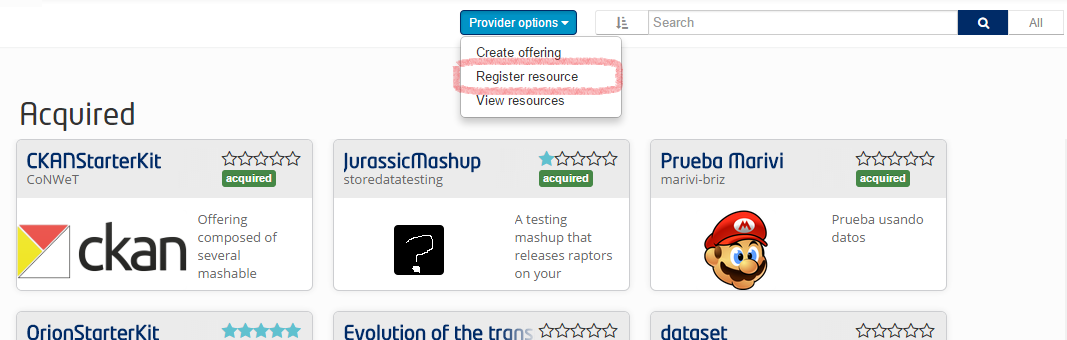
As mentioned before, you can also publish the datasets in the Store by using the methods provided by the Store itself. To do so, first of all you have to enter the FIWARE Store. Once in the Store, you should click in the “My Offerings” button, in the left side bar. To register your dataset as a resource, click on the “Provider Options” button and then in the “Register Resource”. You must note that an offering is composed by zero or more resources.
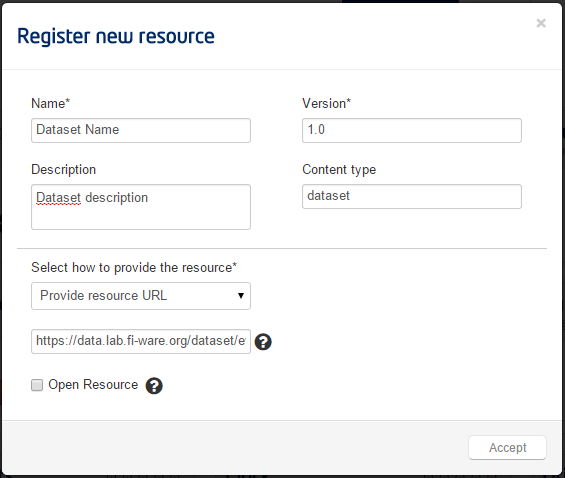
In the new form you will have to complete some fields:
- Name: The name of your dataset (it mustn’t match with the name provided in CKAN).
- Version: The version of the dataset (typically: 1.0)
- Description: Description of the dataset
- Content Type: dataset
- How to provide the resource: Provide resource URL
- Resource URL: the URL that you get when you create your dataset in the FIWARE Data Portal (typically: https://data.lab.fiware.org/dataset/{dataset_name}). You can check this URL by accessing your dataset in FIWARE Data Portal.
- Open Resource: open offerings (those that cannot be acquired) can only contain open resources. However, non-open offerings can contain open resources. (Typically you should disable this checkbox).
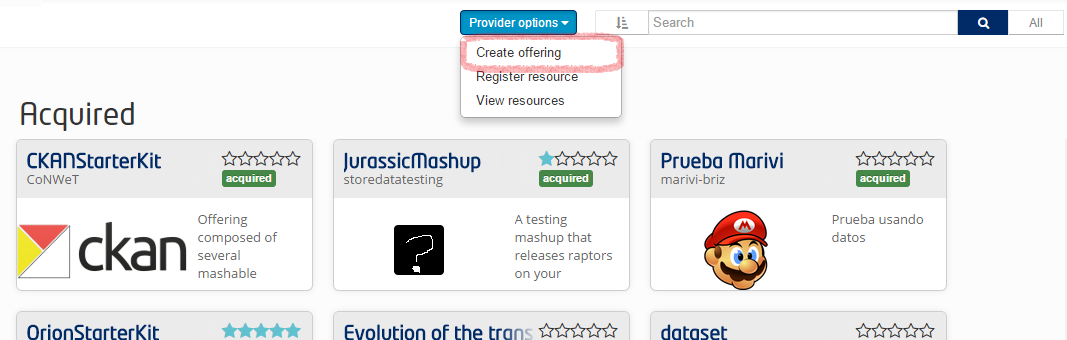
When you have registered your dataset as a resource, you will be able to provide it in the Store. To do so, you should create an offering. You can do it by clicking the “Provider options” button and then the one titled “Create Offering”.
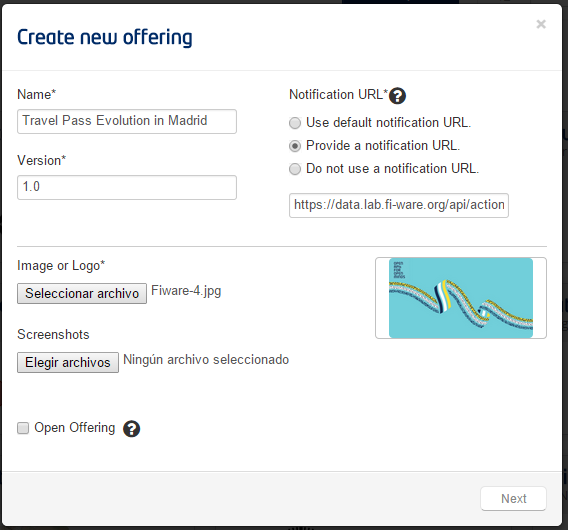
A new dialog will be displayed. This dialog will guide throughout the process of creating a new offering. In the first step, you will be asked to fulfil some basic information such as the name, the version or the logo. You should also note that you are asked for a Notification URL. This URL is the one that will be called when a user acquires a dataset. The Data Portal needs to be notified every time a user acquires a dataset in order to allow this user to access the dataset. In this option you should choose “Provide a notification URL” and introduce the following one: “https://data.lab.fiware.org/api/action/dataset_acquired”. Please note: if you don’t fill this field properly, users won’t be able to access acquired dataset.
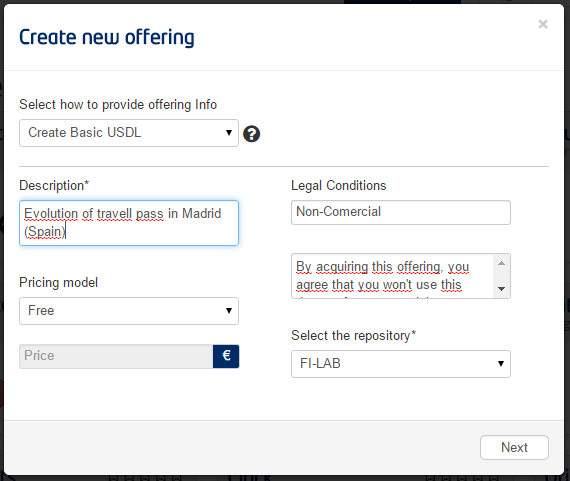
In the following step you will be asked for the description, the pricing model and the legal terms. Using this form, you are only able to choose two pricing models: single payment or free offerings. If you want to set a more complex pricing model, you should provide a custom USDL. Relating to the legal conditions, you must note that all users will be forced to accept these conditions before acquiring the offering. If you don’t want users to accept legal terms, you can leave these fields in blank.
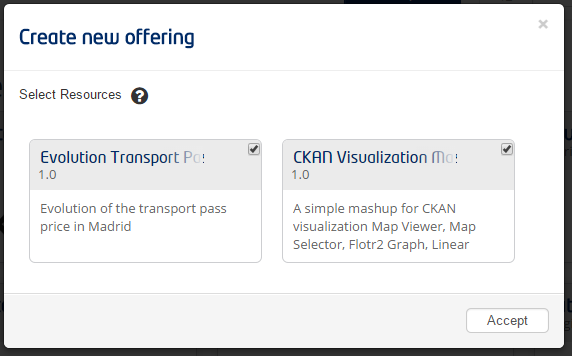
The next step asks you to select some applications. In this case you can avoid this section. The most important section is the next one, where you will have to select the resources that are bounded to the offering. Here you must select the resource created in the previous step. Additionally, you can add some other resources such as WireCloud widgets that can add extra value to your dataset. For example, you can add WireCloud widgets to plot graphs based on the data.
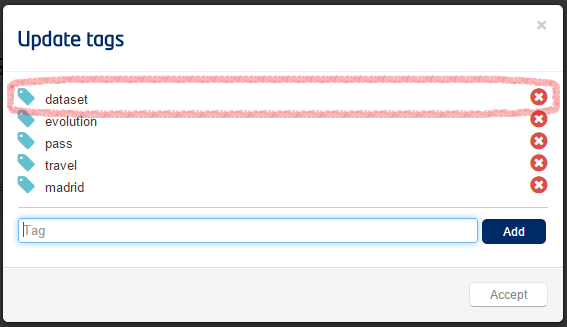
At this point, the offering is already created but is not published yet. To publish the offering, we should click on the “Provided” button placed on the left side bar. In this section, you have to look for the offering created previously. Then click on it and add some tags. To do that, click on the “+” button placed below the “Tags” heading.
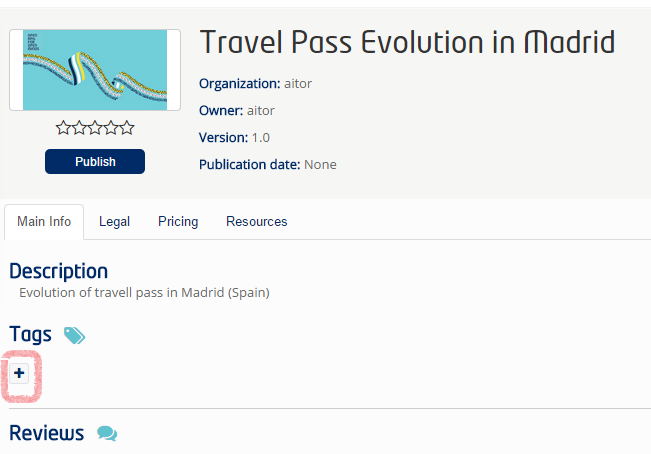
You can add all the tags that you want, but if you want your dataset to appear in the “Datasets” section of the Store, you must add the “dataset” tag.
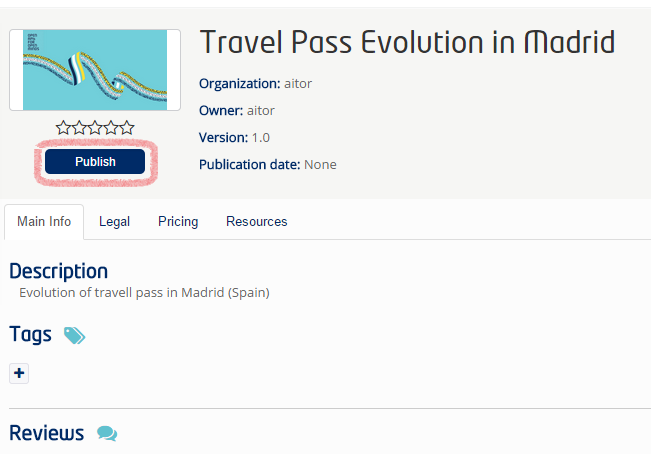
Finally, you must click in the “Publish” button to complete the process.